
In this post I like to show you a new feature, the Brand Center (Preview) as well as showing basics on how and where you can influence certain aspects of the look and feel for SharePoint Online sites. To me, this is important to know to incorporate the corporate identity and design in SharePoint Online the best possible way without any in-depth customization nor developer skills.

Contents
- Entra ID – Branding
- Microsoft 365 Branding
- SharePoint Online Branding Center (Preview)
- SharePoint site (itself or hub site)
- Resources
Entra ID – Branding
Let’s start at the central instance of your Microsoft 365 tenant for identity and access management, the Entra ID (formerly known as Azure AD). At this service you are able to configure some basics for displaying your corporate identity and design elements at the start, e.g. for signing in to Microsoft 365 services like SharePoint Online, Teams etc.
To configure the sign-in user experience you can start in Entra ID \ Identity \ User experiences \ Company Branding (make your that you clicked show all to expand all menus) (https://entra.microsoft.com/#view/Microsoft_AAD_UsersAndTenants/CompanyBrandingOverview.ReactView?Microsoft_AAD_IAM_legacyAADRedirect=true)

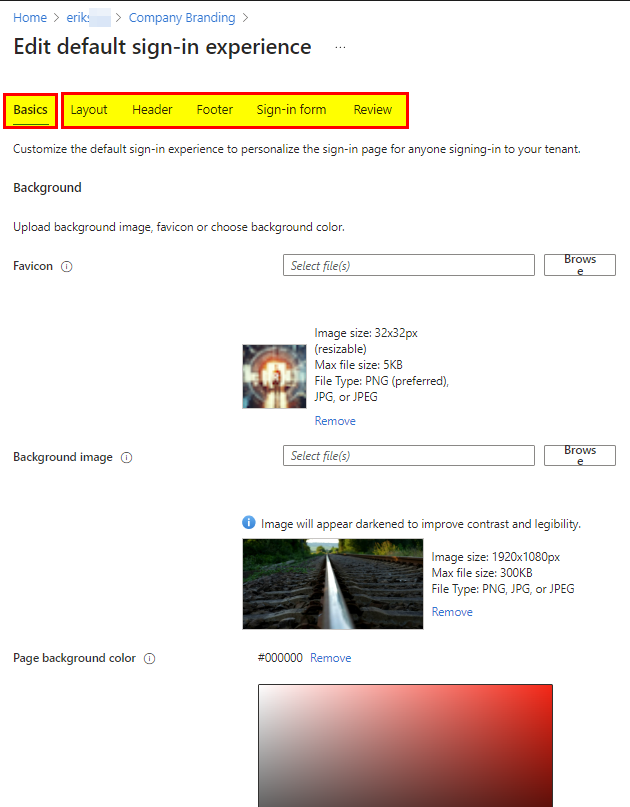
Depending on what elements you configure it will show you this at the sign-in experience.

Microsoft 365 Branding
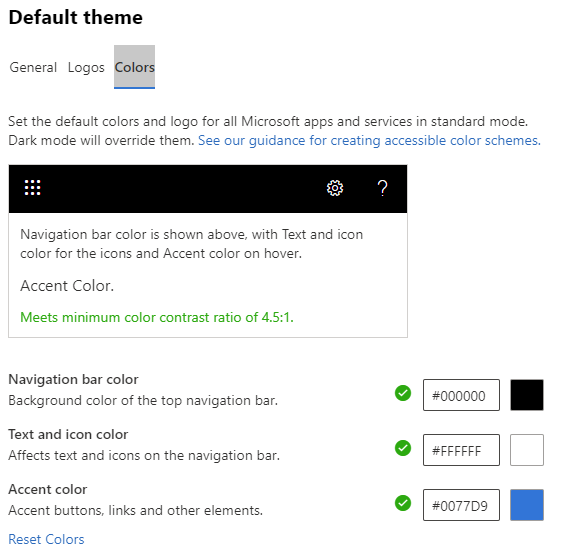
Also another basic branding configuration is provided within the Microsoft 365 admin center. It also includes the option to customize the upper tile or bar in Microsoft 365 apps and services.

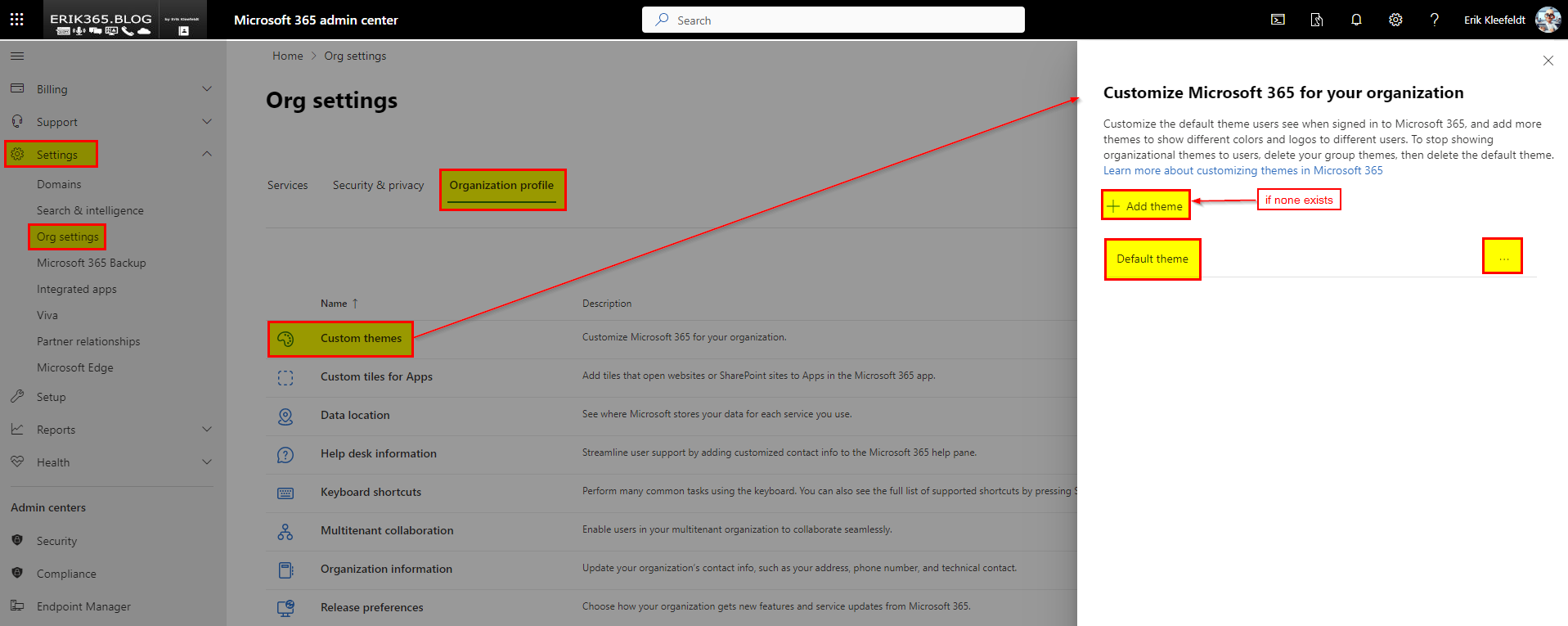
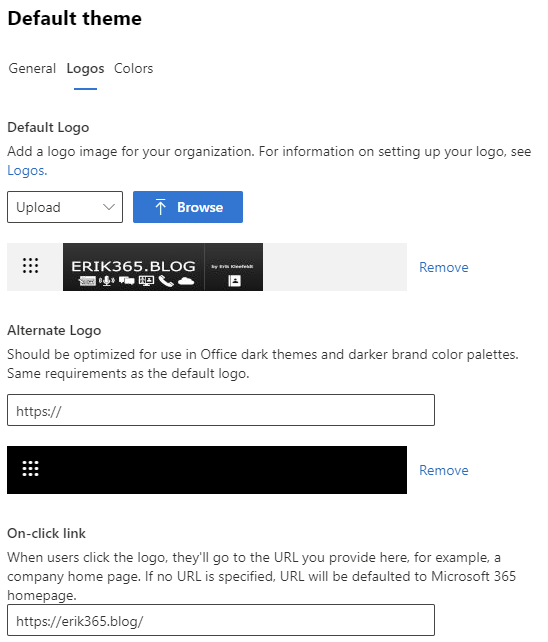
Go to admin.microsoft.com and expand Settings \ Org settings and navigate to Organization profile. Herein you can open Custom themes and either add or modify one. https://admin.microsoft.com/#/Settings/OrganizationProfile/:/Settings/L1/CustomThemes

SharePoint Online Branding Center (Preview)
In April 2024 I heard the first time about the SharePoint Online Brand Center (Preview) in the Microsoft SharePoint Roadmap Pitstop April 2024 and The Intrazone podcast which should help to centrally manage the branding for SharePoint Online sites and pages. It is also part and listed in the Microsoft 365 roadmap as feature item ID 124838.

You can enable it for your Microsoft 365 tenant as far as you are global admin. To enable it you have to go to the Microsoft 365 admin center on admin.microsoft.com. There you expand Settings \ Org settings and navigate to Services. Herein you can open Brand center (preview).


To enable it you have to specify a site name and url. Furthermore you also need to know the impact as mentioned below. You must agree to the pubic CDN activation, e.g. the contents uploaded there are stored externally and public accessible by anyone.
Public CDN activation
You agree to activate this site as your official brand center site and turn on the brand center app for use in your organization. Storage locations will be created for uploading files to brand center and managing them. Any uploaded files will be stored in the cloud and managed in a public content delivery network (CDN). The files will be accessible to anyone who is able to extract the URLs that point to them.
Don’t use this feature if your files contain proprietary information, or if you don’t have the necessary cloud hosting rights to use them.
https://admin.microsoft.com/#/brandcenter May 2025
In case you agree it takes a while to get it provisioned and online.

The site looks like this:

The actual brand center looks like this:
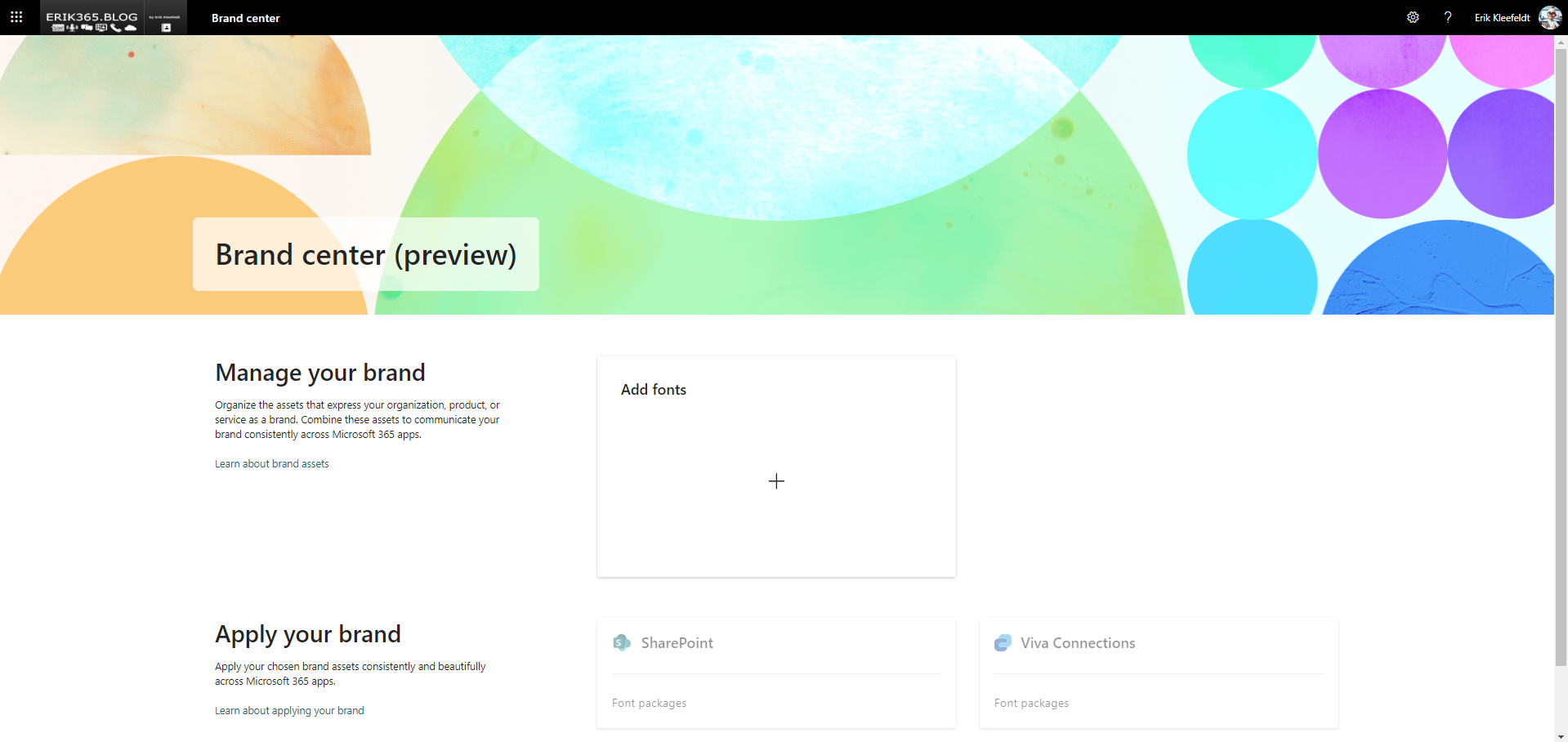

Currently you can only manage fonts SharePoint and Viva Connections desktop.
Due to the fact that it is a preview I assume more branding options are in the backlog right now.
SharePoint site (itself or hub site)
SharePoint sites and pages can be themed or branded as well. There actually two common options available. The first one is to open the site’s settings panel and open Change the look, I’d call it the basic option and the other option is the advanced option. Let’s dive in.
Basic option

Here you can start to change a look of the SharePoint site on which you are on at the moment. If you are working on a hub site you can configure it to inherit the configuration from it to associated sites.

At each section you can make some customization. The most important one is probably the Theme to select colors reflecting your corporate design colors. However this is limited to some proposed color themes by Microsoft. If you want more, exactly your specifc brand colors you need to start with the advanced option. Where you can configure your own themes.
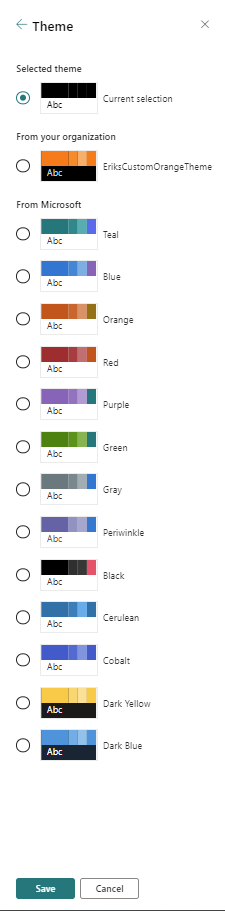
Advanced (theme) option
Now we’ll take a look in the advanced (theme) option. To start you need to know your brand colors, e.g. HEX-codes, e.g. #00FF00. By opening the Fluent UI Theme Designer (windows.net) you can generate a suited branding.

By entering the HEX-color codes on the upper left it generates a preview on the right. If there are no accessibility errors your are good to go. You click on Export on the upper right corner’s button.

By exporting it you are provided with three options. I usually take the PowerShell option.
@{
"themePrimary" = "#009900";
"themeLighterAlt" = "#f1fbf1";
"themeLighter" = "#c8efc8";
"themeLight" = "#9de09d";
"themeTertiary" = "#4ec24e";
"themeSecondary" = "#14a514";
"themeDarkAlt" = "#008a00";
"themeDark" = "#007400";
"themeDarker" = "#005600";
"neutralLighterAlt" = "#ffffff";
"neutralLighter" = "#ffffff";
"neutralLight" = "#ffffff";
"neutralQuaternaryAlt" = "#ffffff";
"neutralQuaternary" = "#ffffff";
"neutralTertiaryAlt" = "#ffffff";
"neutralTertiary" = "#595959";
"neutralSecondary" = "#373737";
"neutralPrimaryAlt" = "#2f2f2f";
"neutralPrimary" = "#000000";
"neutralDark" = "#151515";
"black" = "#0b0b0b";
"white" = "#ffffff";
}
Well, that’s nothing you can just past into PowerShell. You need some cmdlets to complete the task.
#Import or create a SharePoint Online customized color theme
#Create a theme via aka.ms/themedesigner
#Erik Kleefeldt

#Variables
$orgName = "erikspoprefix"
$themename = "EriksCustomDemoTheme"

#Import Module
Import-Module  -Name Microsoft.Online.SharePoint.PowerShell

#Connect SPO
Write-Host "###Connect SPO" -ForegroundColor Cyan
Connect-SPOService -Url https://$orgName-admin.sharepoint.com


$themepallette = @{
"themePrimary" = "#009900";
"themeLighterAlt" = "#f1fbf1";
"themeLighter" = "#c8efc8";
"themeLight" = "#9de09d";
"themeTertiary" = "#4ec24e";
"themeSecondary" = "#14a514";
"themeDarkAlt" = "#008a00";
"themeDark" = "#007400";
"themeDarker" = "#005600";
"neutralLighterAlt" = "#ffffff";
"neutralLighter" = "#ffffff";
"neutralLight" = "#ffffff";
"neutralQuaternaryAlt" = "#ffffff";
"neutralQuaternary" = "#ffffff";
"neutralTertiaryAlt" = "#ffffff";
"neutralTertiary" = "#595959";
"neutralSecondary" = "#373737";
"neutralPrimaryAlt" = "#2f2f2f";
"neutralPrimary" = "#000000";
"neutralDark" = "#151515";
"black" = "#0b0b0b";
"white" = "#ffffff";
}

Add-SPOTheme -Name $themename -Palette $themepallette -IsInverted $false

#Update/Overwrite an existing customized theme
#Add-SPOTheme -Name $themename -Palette $themepallette -IsInverted $false -Overwrite

#Disconnect SPO
Disconnect-SPOService
I hope this overview helps you to incorporate your corporate design a bit more into your SharePoint sites and Microsoft 365.
Resources
- SharePoint Brand Center – SharePoint in Microsoft 365 | Microsoft Learn
- Microsoft SharePoint Roadmap Pitstop April 2024 and The Intrazone podcast
- Fluent UI Theme Designer (windows.net)
- SharePoint site theming | Microsoft Learn
- SharePoint site template and site script overview | Microsoft Learn
- Apply and customize SharePoint site templates – Microsoft Support





 erik365.blog
Comment / Kommentar verfassen