
In the ever-evolving landscape of digital communication, Microsoft Teams continues to be a pivotal tool for collaboration. One of the most compelling recent advancements is the enhanced External Access feature, which offers more granular configuration options.

What is External Access in Microsoft Teams?
Microsoft Teams External Access allows organizations to communicate with external users via Teams chats. In my opinion the name “External Access” is confusing. In Skype for Business it was called “Federated Chat” what, to me, sounded more specific and less irritating. External Access is crucial for businesses that need to communicate with clients, partners, or vendors outside their Microsoft 365 organization by using basic communication and collaboration feature but not requiring a team in Teams for a more complex collaboration. With the recent updates, managing these external communications has become significantly more precise as it was before.
Table of contents
- What is External Access in Microsoft Teams?
- Why is this important?
- Steps for re-configuration
- What’s new? New Configuration Options?
- Global vs. Policy-Based Controls
- Conclusion, opinion and summary
- Resources
Why is this important?
For Teams administrators, understanding these new configuration options is essential. The ability to finely tune external access settings enhances security. By familiarizing themselves with the new controls, Teams admins can tailor their external access to better suit the needs of their organization while minimizing potential security threats.
Steps for re-configuration
Considering these significant changes, IT admins should review and potentially reconfigure their current external access settings.
Here are some steps to guide this process:
- Review Current Settings: Assess the existing external access configurations in Microsoft Teams to identify any broad permissions that might need adjustment.
- Identify Security Requirements: Determine the specific security needs of your organization and define policies that align with these requirements.
- Apply Granular Policies: Use the new settings to create and apply policies that provide the necessary level of external access without compromising security.
- Adjust (optional): Make adjustments as needed to ensure security.
What’s new? New Configuration Options?
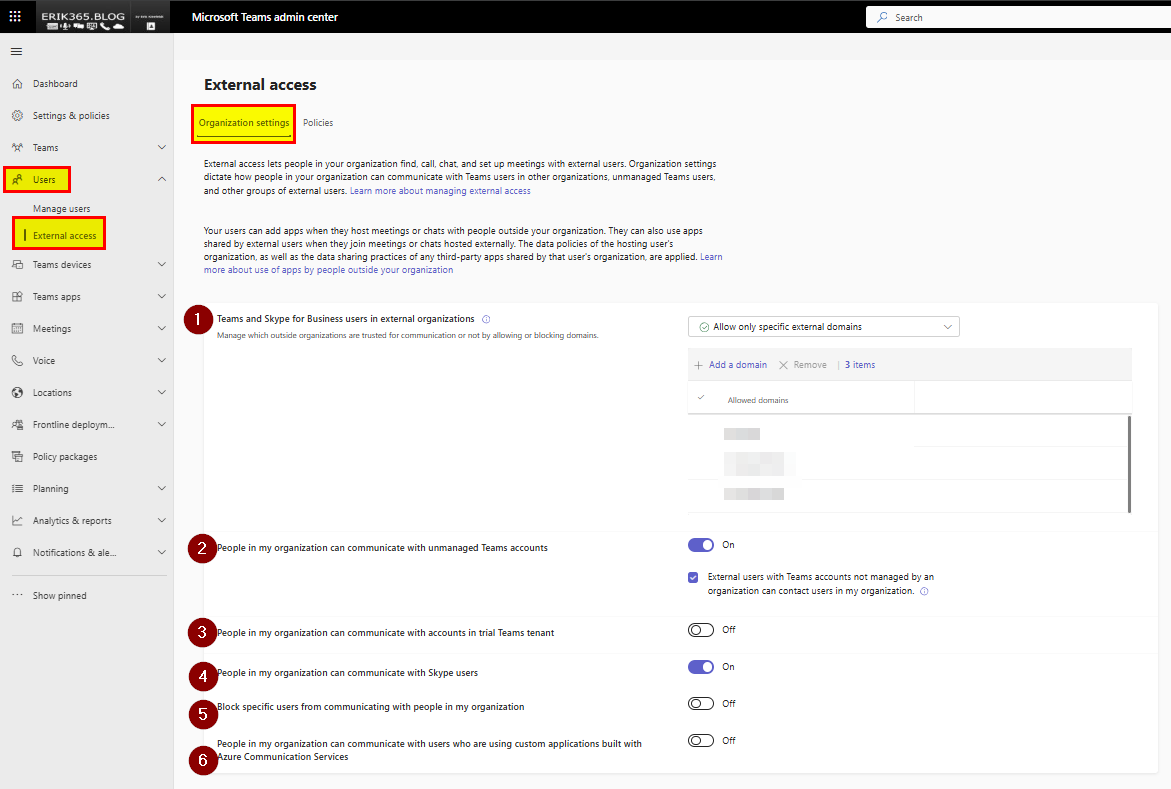
The new settings in the Microsoft Teams Admin Center (TAC) introduced by Microsoft enable IT administrators to control external access with a higher degree of granularity directly via TAC. These settings can now be applied via TAC globally and/or through specific policies, allowing for tailored configurations that meet unique (Microsoft 365) organizational needs. This shift from a one-size-fits-all approach to a more customizable setup via GUI is a welcome change for many companies.
Global vs. Policy-Based Controls
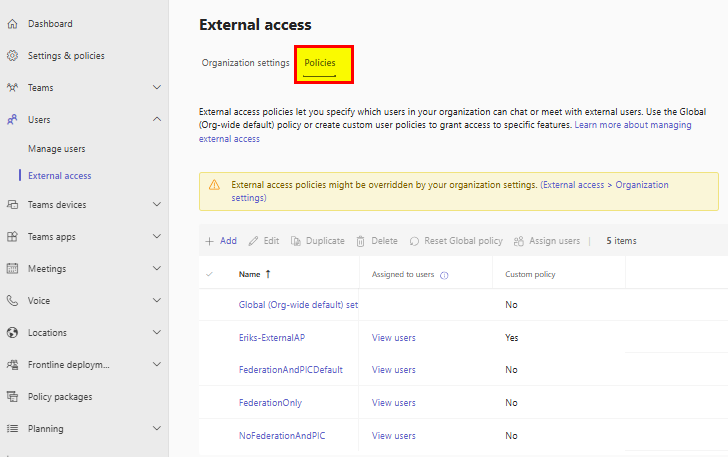
Previously, external access settings were somewhat limited, a global org-wide setting that could pose security risks. Or forced organizations to decide on global settings for all Microsoft Teams users in a Microsoft 365 tenant.
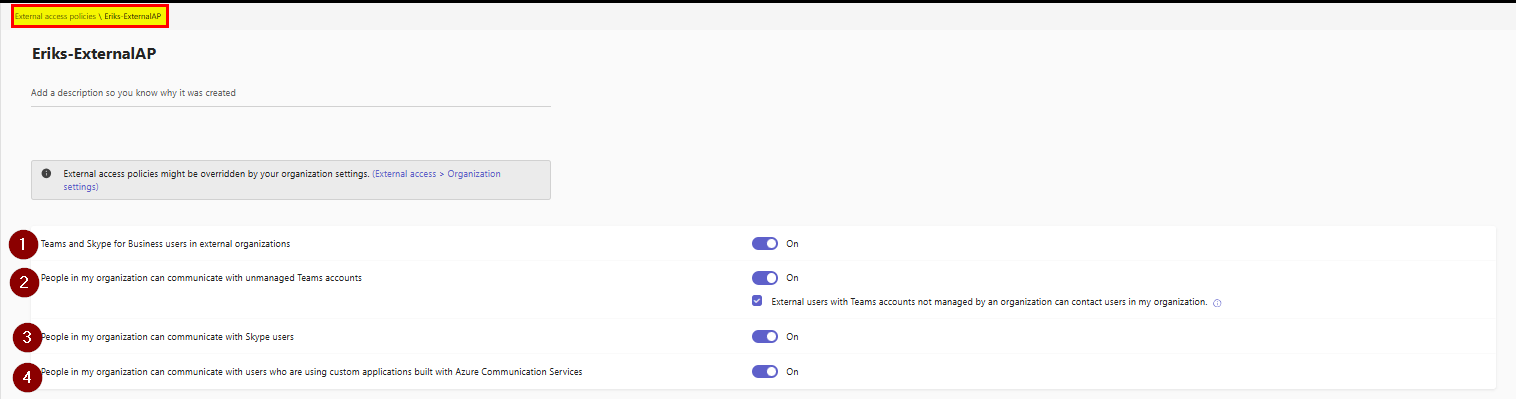
The latest updates enable Teams administrators to apply more specific policies, ensuring that only the necessary external communication is allowed. For example, certain departments or user groups can be granted different levels of access based on their specific requirements and security considerations. E.g. there are global settings allow general external access (and communication) but more specific policies can be applied to individual users or a group of users.
Conclusion, opinion and summary
The enhanced External Access configuration in Microsoft Teams is a step forward in improving communication security for “federated” chats with external users. By leveraging the new granular configuration options, IT admins can control their Teams external (access) chats better.


 erik365.blog
Comment / Kommentar verfassen