
If you’ve switched to the new Microsoft Outlook experience and noticed your folder organization behaving strangely – you’re not alone. I recently noticed that a custom folder order had silently taken over my Outlook layout. Each new subfolder I created, even within existing folders like “Suppliers,” would appear at the very top of the list, ignoring alphabetical order. For instance, a folder starting with “M” wasn’t landing mid-list as expected. It was jumping straight to the top.
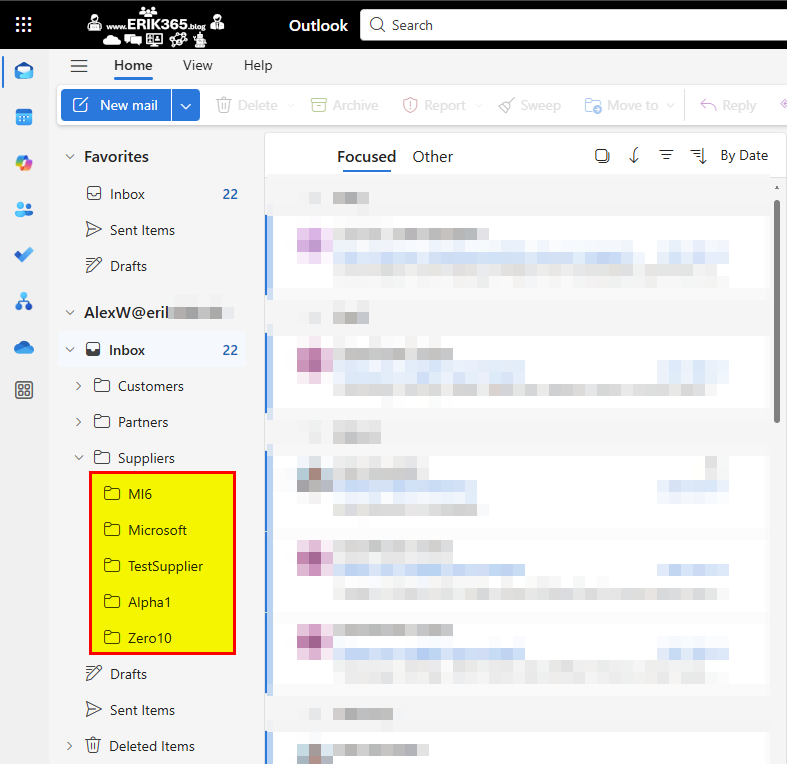
At first, I tried the usual trick: right-clicking the parent folder and looking for a “Sort Subfolders” option. No luck! This feature wasn’t available in the new Outlook client. After some research, I stumbled across several (older) forum posts claiming that folder sorting in modern Outlook still wasn’t supported, and manual rearranging was the only workaround.

That approach didn’t work it for me. With multiple new subfolders already in place, dragging them one-by-one felt like an inefficient way.
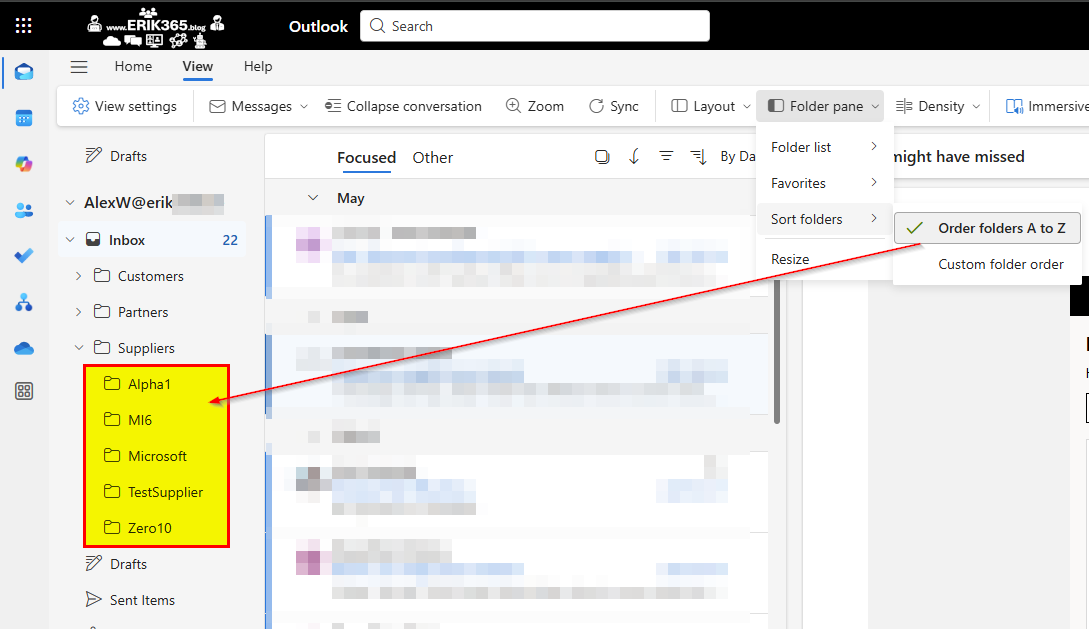
So I took a quick tour into the Outlook settings. And—success! 💡 Hidden in the interface was a simple switch that put my folder structure back in order:
Here’s how to restore alphabetical sorting in Outlook:
- Go to the View tab.
- In the Layout group, open the Folder Pane dropdown.
- Click Sort folders, and choose Arrange folders A to Z instead of using the Custom folder order.

It’s a small setting, tucked away in a corner. But it makes a big difference when you’re trying to keep your folder system tidy and intuitive.
Conclusion, opinion and summary
As Outlook continues evolving, it’s worth occasionally taking a few minutes to explore the settings. Hidden gems like this can help you stay organized.







 erik365.blog
Comment / Kommentar verfassen