
In the recent Microsoft Teams Blog post published in July 2025, Microsoft wrote about the introduction of a significant feature for Microsoft Teams Call Queues, to prioritize calls. This update has the potential to simplify your configuration and moreover can increase your callers’ experience and satisfaction. That’s why I’d like to highlight this new capability so that you as an Teams Admin get familiar with it.This development enhances nativ call flow capabilities. It might even remove necessity of maintaining separate call queues for different priority levels depending on your requirements for priorities in call flows. In other words this can lead to a reduction in the overall number of call queues required and improve the user experience for callers tremendously. Various scenarios can be implemented. The call flow illustrated below represents one of three possible scenarios.
What scenarios for prioritized call flows are there?
The documentation namens the following three scenarios:
- Priority to callers based on dialed number
- Priority for callers based on Auto Attendant menu choices (see picture below)
- Priority to agents transferring calls to another call queue
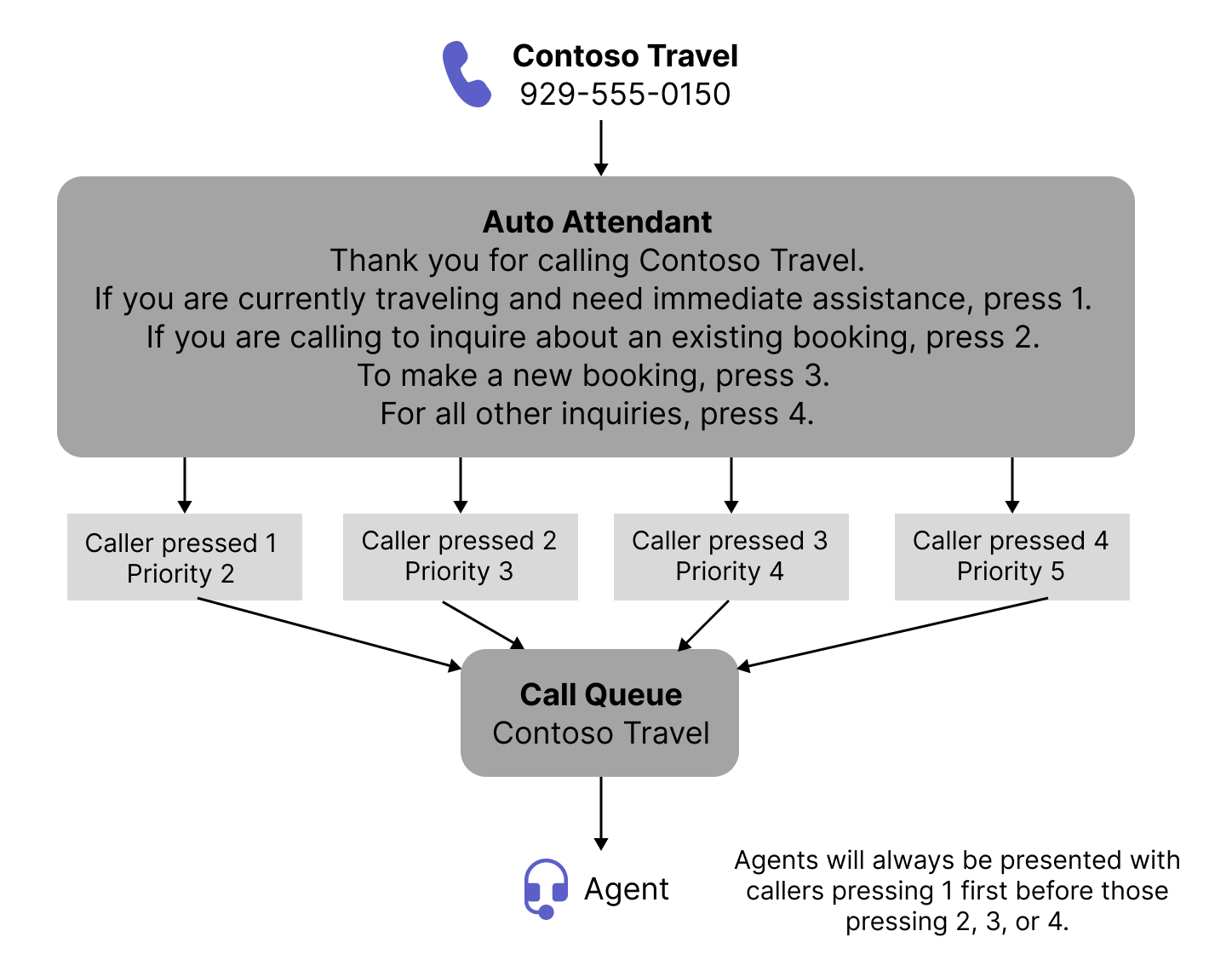
What priorities can be set?
As an IT admin, you can set call priority levels from 1 to 5, where 1 is the highest priority and 5 is the lowest. Priority is given to a call if:
- Auto attendants can set call priority when transferring to a call queue or a resource account that acts as a call queue.
- Resource accounts linked to a call queue can have a priority set.
- When a call is transferred to a call queue, the queue respects the priority set by the transferring auto attendant or call queue. For direct calls, the queue uses the priority of the resource account.
How to configure priorities?
If you would like to test and configure it, you need to do so by utilizing PowerShell. Currently, you will not yet find it in the Teams Admin Center.
Please note that you must not change anything in the call queue or auto attendant by using the Teams Admin Center after you configured it one by using PowerShell. All future configurations and changes must be done by using PowerShell. Otherwise you will break it and the priority configuration is removed.
To configure priorites you need to use the new -CallPriority 1-5 parameter of the New-CsAutoAttendantCallableEntity cmdlet:
New-CsAutoAttendantCallableEntity
    -Identity <String>
    [-Tenant <Guid>]
    [-EnableTranscription]
    [-EnableSharedVoicemailSystemPromptSuppression]
    [-CallPriority <Int16>]
    [<CommonParameters>]
In the current documentation, there are several examples provided regarding the implementation of prioritized calls. To access these examples, it is necessary to expand the section within the documentation, which may not be immediately apparent.
Present Support and Limitations
Currently the documentation names the following considerations and things to be aware of and keep in mind:
- Agents always receive the highest priority calls first
- Not supported for Teams Call Queue / Auto Attendant authorized users
- Keep the highest and lowest call priorities available for future use, so use just 2-4
- Agents don’t receive notifications about which calls are what priority. The priority is only used to determine the order in which calls are presented to agents.
Conclusion, opinion and summary
Configuring priorities can improve caller satisfaction, especially for business-critical calls, by shortening waiting time. I’m excited about the feature’s release but disappointed that it is not yet available in the Teams Admin Center. I assume that we will get it there as well, but this probably requires some more time to get it implemented. Currently, I would only configure and use it for static call flows. I would not configure it for call flows that might change, even if there are flows that would benefit from this capability and are rarely changed. Because a change in the Teams Admin Center removes the configuration of priorities, which might cause a call flow mess, I would refrain from using it for Teams call flows that are not final and not static. I’m afraid that Teams Voice Admins and I might forget to use PowerShell to make changes after the priority configuration has been made, especially if the configuration was weeks or months ago. What do you think?




 erik365.blog
Comment / Kommentar verfassen