In this post, I want to provide an overview of Teams Mode in Microsoft 365 Copilot. First of all, what is Teams Mode? To keep it short, it is a new capability that allows organizations to use Copilot not just individually, but collaboratively within Microsoft Teams. It extends Copilot from a personal assistant into a shared team resource.

What is Teams Mode and Why Does It Matter?
The big picture: why does this feature exist and what problem does it solve? In today’s workplace, collaboration is rarely a solo effort. Teams Mode addresses this by enabling AI-powered teamwork directly in Teams chats. Instead of each person working separately with Copilot, groups can now co-create, analyze, and plan together with AI in the loop. It provides:
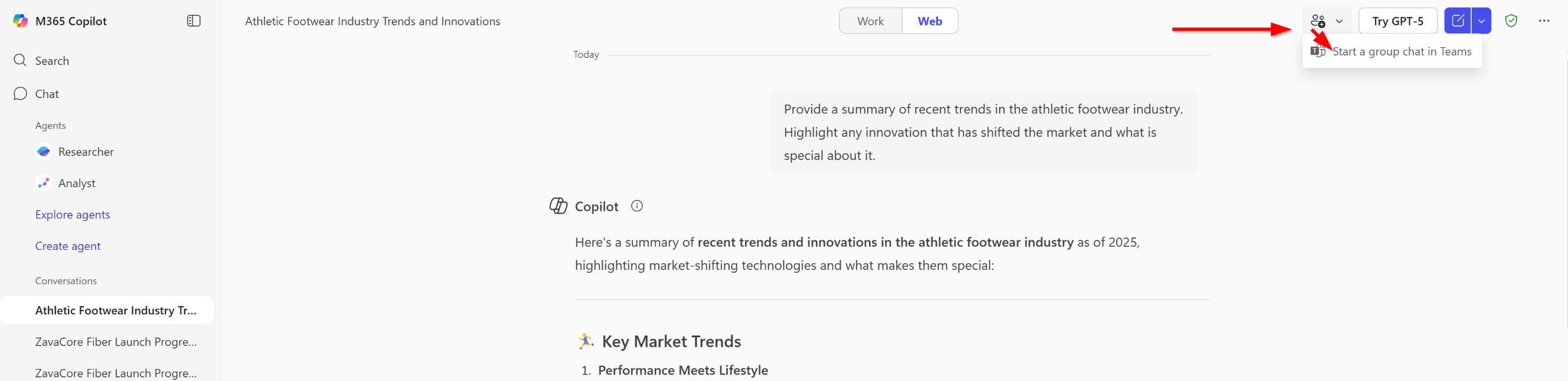
- Shared Copilot sessions that can start privately and expand into group chats.
- Selective sharing of prompts and results, ensuring sensitive data stays private.
- Direct interaction for every team member, who can ask Copilot questions in the same chat.
What’s the Business Value for Organizations?
Teams Mode is more than a neat feature it delivers some benefits for your collaboration:
- Faster decision-making: Teams can gather insights collectively in one place.
- Cross-functional collaboration: Sales, Finance, and Engineering can all query Copilot in the same thread.
- Improved productivity: Less context-switching between individual chats and group discussions.
- Secure collaboration: Built on Microsoft 365 permissions, ensuring compliance and data protection.
What are the Core Components and Integrations?
Teams Mode builds on existing Microsoft 365 and Teams infrastructure:
- Microsoft Teams: The central hub where Copilot joins group chats.
- Microsoft 365 Copilot: Provides AI-driven insights, summaries, and drafting support.
- Permissions model: Respects existing Microsoft 365 access rights.
How Can Users Benefit?
For employees, Teams Mode is designed to be intuitive:
- Start a private Copilot chat and later invite colleagues.
- Add Copilot to existing Teams group chats.
- Ask Copilot for summaries, comparisons, or creative input directly in the team conversation.
- Use @ Mentions to ask Copilot
Example Use Cases
Here are some practical scenarios where Teams Mode shines:
- Strategy development: Collect market data, invite colleagues, and refine a joint plan.
- Event planning: Generate ideas and logistics suggestions with Copilot.
- Marketing campaigns: Combine creative and analytical input across departments.
- Quarterly goal setting: Draft objectives and assign responsibilities.
- Onboarding: Help new employees get up to speed with team knowledge.
What are the Prerequisites to Get Started?
- Licensing: Available for users with a Microsoft 365 Copilot license.
- Platforms: Supported on desktop, mobile, and web.
- Availability: Currently in public preview.
Conclusion, Opinion and Summary
Teams Mode transforms Copilot from a personal productivity tool into a team collaborator. For organizations already invested in Microsoft 365, this is a natural extension that enhances collaboration, speeds up decision-making, and ensures security. In short: if your teams rely on Microsoft Teams for daily work, Teams Mode is can be a strategic advantage to level up your collaboration.





 erik365.blog
Comment / Kommentar verfassen