In this post I like to highlight how you can manage contacts on certified Microsoft Teams Phones which are used as common area phones. Managing contacts centrally and natively across Teams Phones has always been a challenge for Teams Phone administrators, especially when dealing with common area phones in larger organizations. Microsoft has introduced a remote contact management feature in the Teams admin center, making it easier to centrally add or remove contacts for Teams-certified phones.
Contents
- What are Common Area Phones?
- What is required to manage contacts for Teams Common Area Phones?
- How to add contacts to Teams Common Area Phones?
- How to delete contacts of Teams Common Area Phones?
- What Permissions are required?
- How to set the required Permissions by using PowerShell?
- Are there any known limitations?
- Conclusion, opinion and summary
- Resources
What are Common Area Phones?
Common area phones are often placed in shared spaces such as lobbies, meeting rooms, or factory floors. These devices are used by multiple people, and having a consistent set of emergency or frequently used contacts available directly on the phone can save time and improve accessibility. Instead of relying on manual updates, admins can now push contacts remotely.
What is required to manage contacts for Teams Common Area Phones?
Before diving into the setup, make sure:
- Your Teams Phone is updated to version 1449/1.0.94.2025062601 or later.
- The device runs on the required Android build.
- You have the necessary mailbox permissions for Teams Device accounts. Without these, you’ll encounter errors when trying to manage contacts.
How to add contacts to Teams Common Area Phones?
To add contact you need to carry out the following steps:
- Prepare a CSV file with the contacts you’d like to add.
- Sign in to the Teams admin center (TAC)
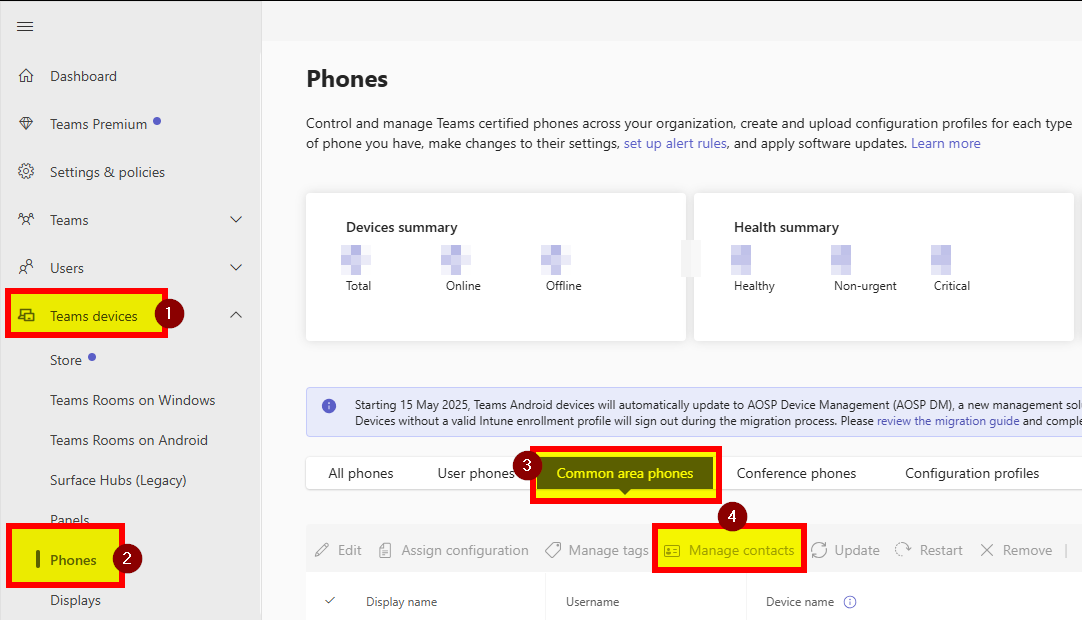
- Navigate to Teams devices \ Phones \ Common area phones.
- Select the devices you want to manage and click Manage Contacts.
- Use the search box to add contacts, or import them via a CSV file
- Save your changes – contacts will sync to the Company contacts folder within 24 hours.
How to delete contacts of Teams Common Area Phones?
To delete contact/s you need to carry out the following steps:
- Select the device in the Teams admin center (TAC)
- Open Manage Contacts.
- Remove the relevant contacts and confirm deletion.
- Changes will also take up to 24 hours to reflect.
What Permissions are required?
Managing contacts requires mailbox permissions.
How to set the required Permissions by using PowerShell?
Microsoft provides a Mailbox Permission Script Execution Guide to help admins grant Full Access permissions in bulk using PowerShell 5.1+. The script supports Modern Authentication (MFA) and logs all actions, making it easier to troubleshoot and maintain compliance.
#2025 November Source: https://learn.microsoft.com/en-us/microsoftteams/phones/remote-contacts-management
#Check out the latest version on the Microsoft Documentation
#Provide as-is, use on own risk

#Install and import the Exchange Online module if not already installed
Install-Module -Name ExchangeOnlineManagement -Scope CurrentUser -Force Import-Module ExchangeOnlineManagement

#Prompt for admin user principal name only (no password)
$adminUser = Read-Host "Enter the Admin User UPN (e.g.,

#Prompt for CSV file path (no double quotes in the file path)
$csvPath = Read-Host "Enter the full path to your CSV file (e.g., C:\scripts\user_upns.csv no quotes)"

#Connect to Exchange Online (interactive login, supports MFA)
Connect-ExchangeOnline -UserPrincipalName $adminUser

#Log file path
$logPath = "mailbox_permission_log.txt"

#Import the CSV file
$users = Import-Csv -Path $csvPath

foreach ($user in $users) { $userUPN = $user.UPN $serialNumber = $user.'Serial Number' if ([string]::IsNullOrWhiteSpace($userUPN)) { $logEntry = "$(Get-Date -Format 'yyyy-MM-dd HH:mm:ss') SKIPPED: Missing UPN for Serial Number $serialNumber" Write-Host $logEntry -ForegroundColor Yellow Add-Content -Path $logPath -Value $logEntry continue } try { Write-Host "Adding FullAccess permission for $adminUser to $userUPN's mailbox..." Add-MailboxPermission -Identity $userUPN -User $adminUser -AccessRights FullAccess -InheritanceType All -ErrorAction Stop $logEntry = "$(Get-Date -Format 'yyyy-MM-dd HH:mm:ss') SUCCESS: Added FullAccess for $adminUser to $userUPN" Write-Host $logEntry -ForegroundColor Green } catch { $logEntry = "$(Get-Date -Format 'yyyy-MM-dd HH:mm:ss') ERROR: Failed to add FullAccess for $adminUser to $userUPN. Error: $_" Write-Host $logEntry -ForegroundColor Red } Add-Content -Path $logPath -Value $logEntry }

Write-Host "Script completed. Check $logPath for details."
Are there any known limitations?
- Contact deletion can only be performed one device at a time.
- The activity log is available only for Phones and tracks Manage Contacts operations.
- A current issue exists: when organizational contacts include both email and phone numbers, calls may route to the phone number instead of the Teams client. Microsoft is investigating this.
Conclusion, opinion and summary
This new capability is a welcome improvement for organizations managing multiple Teams Phones. By centralizing contact management, Teams Phone Admins can ensure consistency, reduce manual effort, and improve accessibility for end users. Plus using native tooling. While there are current limitations, the feature represents a step forward in simplifying Teams Phone Device administration by using native tools.




 erik365.blog
Comment / Kommentar verfassen