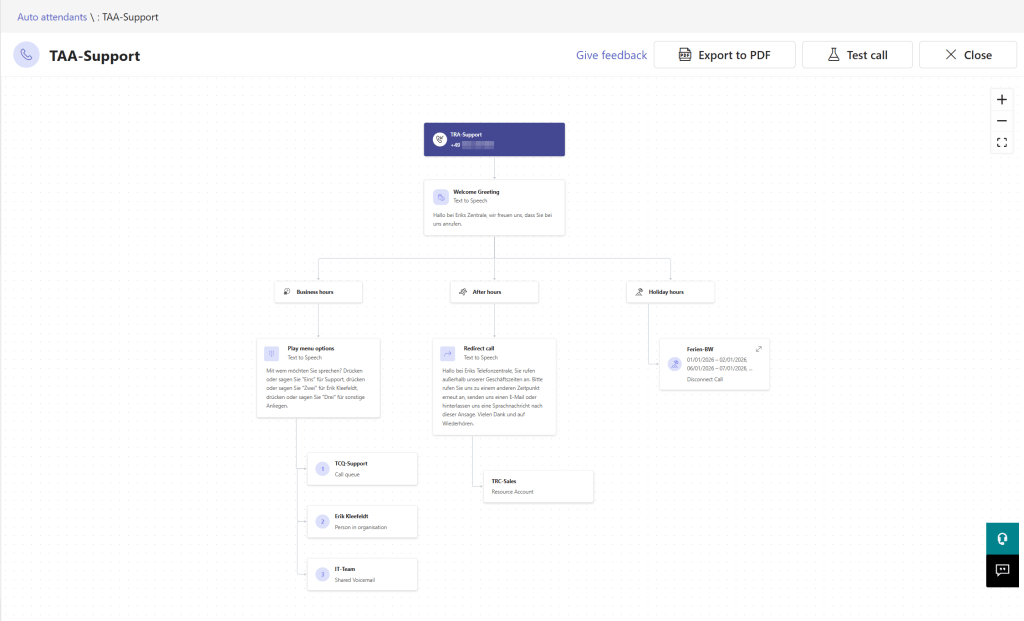
Did you know that you now or soon can visualize Auto-Attendant Call Flows? You do not have to draw them by yourself by using Visio or similar nor you need a third-party tool which is creating a visual based on PowerShell output! Isn’t that great news?
Based on a message center notification you will be able to get a drawing of your Auto Attendant-based Call Flow in the Teams Admin Center. It was already available in my lab tenant but might be not available in all tenants but should be soon.
Microsoft says that the feature rollout started in June 2026 and might be completed by the end of June 2026 for worldwide and GCC tenants. For GCC High and DoD tenants, the rollout is scheduled to start in mid-August 2026 and will be in progress until probably mid-September 2026.
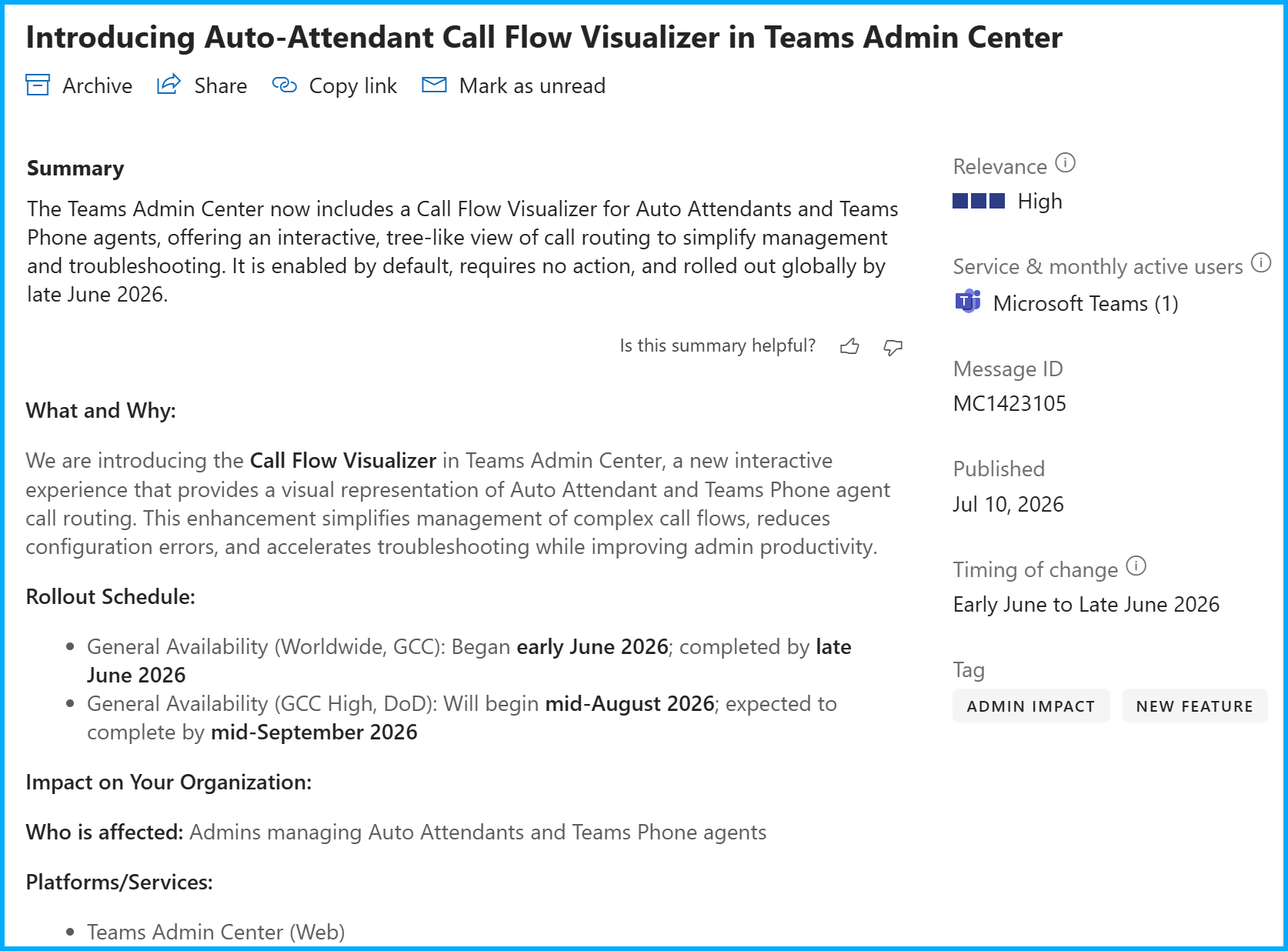
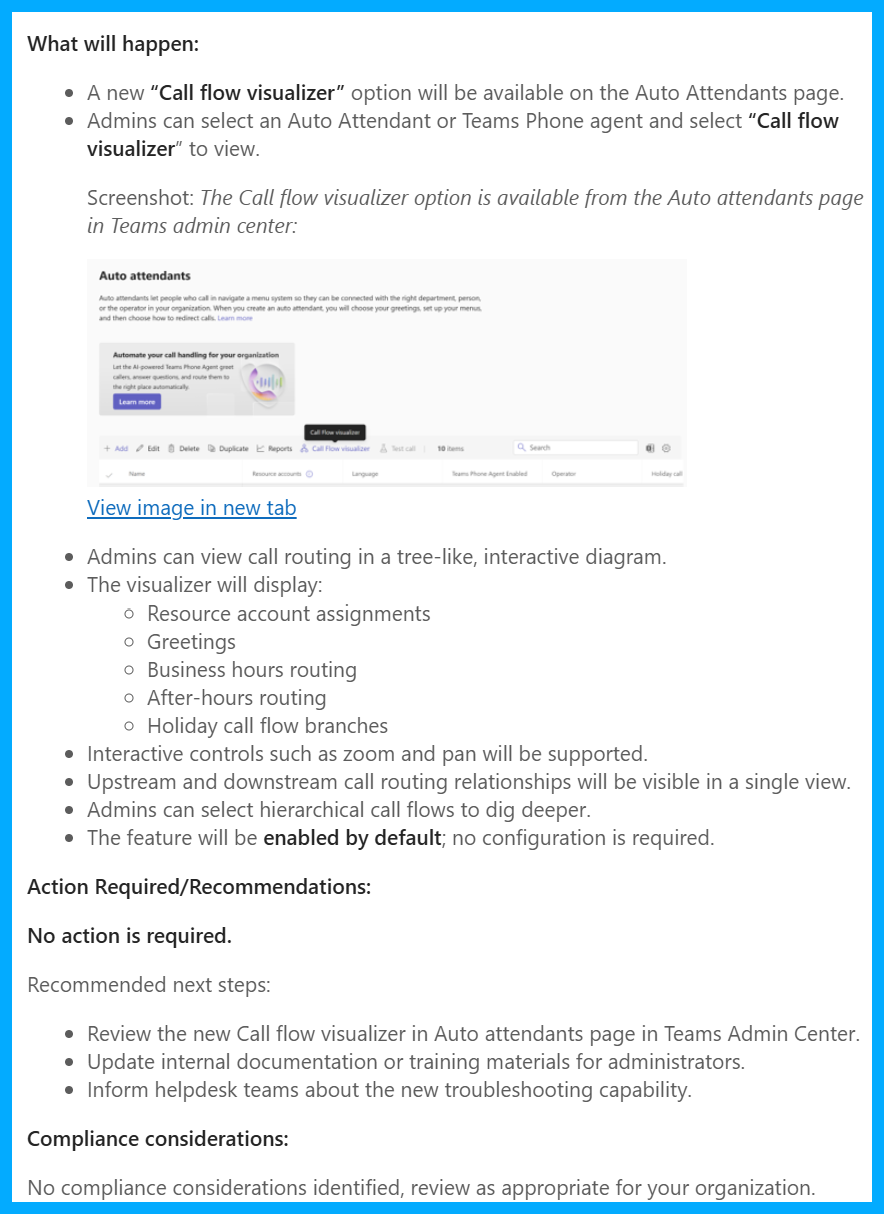
Source: Microsoft 365 Message Center Notification MC1423105
Initial Overview
As mentioned in my lab tenant it is available. So let me show you where you can and should find it as soon as is is available.
First, let’s start in the Teams Admin Center.
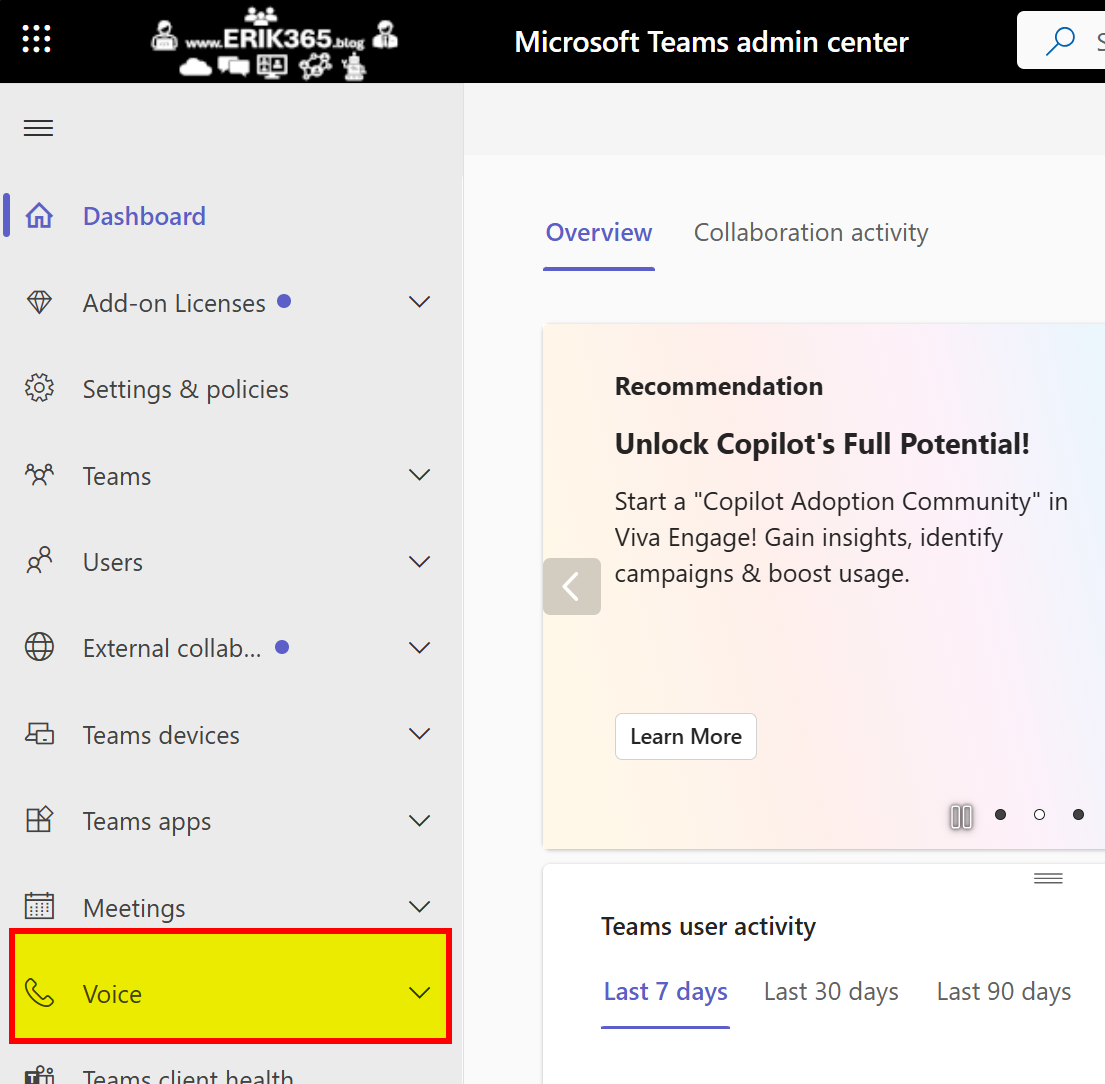
Open the voice space.
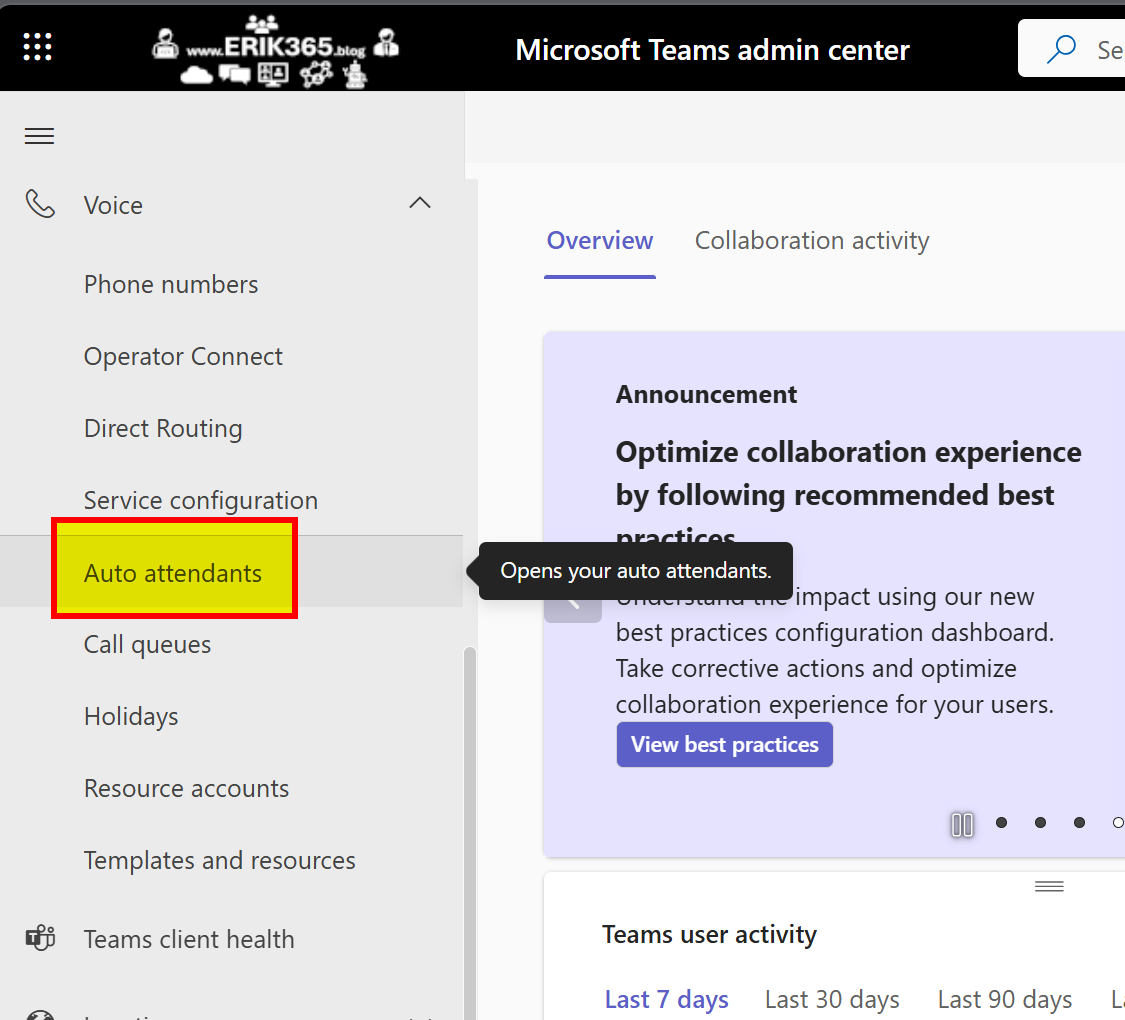
Open the Auto attendants list
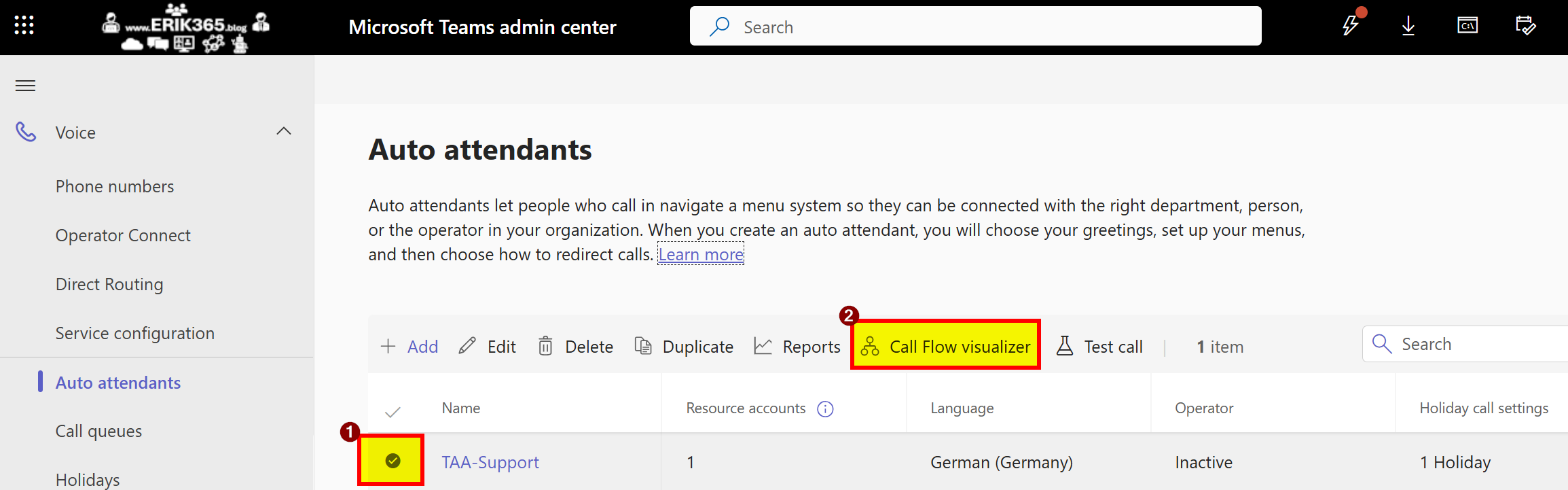
Select one of your Auto attendants to click on “Call Flow visualizer”.
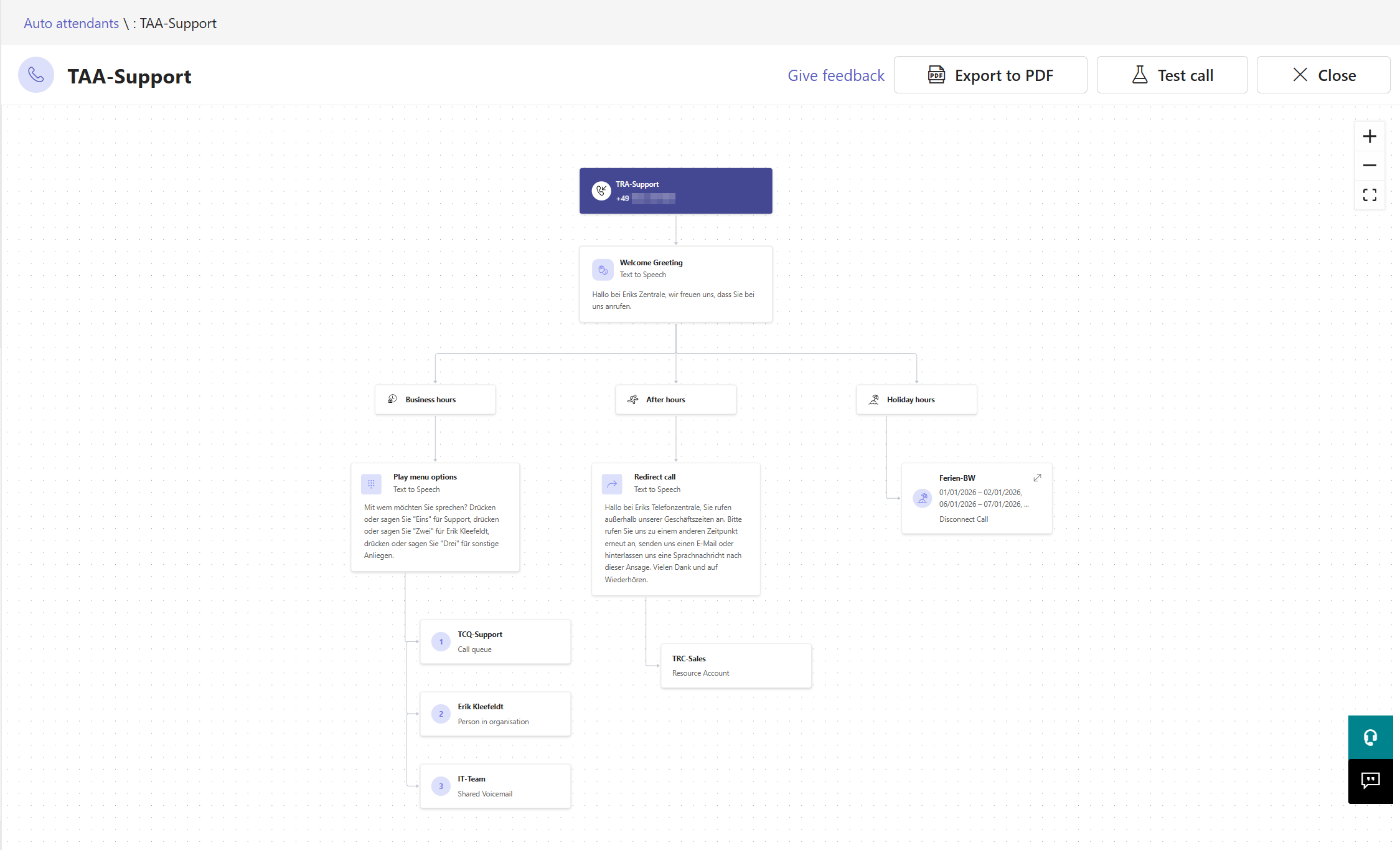
Now view your call flow. It opens in an instant in my experience so far.
The visualizer now shows you the call flow based on the Auto Attendant. It starts in at the top middle with the associated resource account and its phone number. Followed by the basic settings for the Auto Attendant like a Welcome message, business hours, after hours and holiday configurations of this flow. You see the tree and if a call is supposed to be transferred to a specific call queue, person, gets disconnect or else. You also can read Text-to-speech messages. Only the holiday box let’s you go into more details. The other boxes show you information as-is without the option to investigate, view or open more details. But to me, that’s totally fine to get an quick overview if you have many call flows and quickly need to understand how it is linked together without opening each Auto Attendant and go through all details. If you don’t have to.
On the upper right hand side you can export the visual to a PDF, make a test call which opens another window to start a call via Teams, of course you can close it but also zoom in or out or make the call flow content to fit into the canvas.
Conclusion, opinion and summary
I really like it although it is incomplete. There are details not shown but maybe on purpose to avoid overloading the view. To gain a first glance to quickly see a call flow based on an Auto Attendant, totally fine. If you have call queues and not always an Auto Attendant as first hop configured you will not (yet?) get a visual of a call queue.
Depending on your requirements it might still make sense to generate your own drawing either by using PowerShell output or some config screenshots plus Copilot to generate an high-level overview (try using infographic in Copilot), old school Visio or other tools, e.g. the M365 Call Flow Visualizer by Martin Heusser.






Comment / Kommentar verfassen